Getting started with Preview Environments
Preview Environments give every pull request its own fully deployed instance of your application. Reviewers can interact with the changes live, without cloning the branch or running anything locally. When the pull request is merged or closed, the environment is automatically destroyed.
In this tutorial, you will configure two GitHub Actions workflows for the Movies sample application: one that deploys a Preview Environment when a pull request is opened, and one that cleans it up when the pull request is closed. You will also add end-to-end tests that run automatically against each preview.
Prerequisites
- An Admin Access Token for your Okteto instance. Creating one requires admin access; if you are not an administrator, ask an admin to generate a token for you.
- A GitHub account
Step 1: Fork the sample application
Fork the Movies repository to your own GitHub account and clone the fork to your machine. This microservices application includes a React frontend, a Node.js catalog service, a Java rent service, Go API and worker services, and supporting infrastructure (PostgreSQL, Kafka, MongoDB).
The repository already has an Okteto Manifest (okteto.yaml) that defines how to build and deploy all services, and a test section for end-to-end tests using Playwright. It also ships with working preview workflows in .github/workflows/ that Okteto uses for its own CI — you can keep them as a reference. In this tutorial you rebuild both workflows step by step, wired to your own Okteto instance.
GitHub disables workflows on forks by default. Open the Actions tab of your fork and click I understand my workflows, go ahead and enable them so the preview workflows can run.
Step 2: Configure your GitHub secrets
The GitHub Actions workflows authenticate with Okteto using two secrets. Create them in your fork under Settings > Secrets and variables > Actions > New repository secret:
| Secret | Value |
|---|---|
OKTETO_TOKEN | An Admin Access Token from your Okteto instance |
OKTETO_CONTEXT | The URL of your Okteto instance (e.g., https://okteto.example.com) |
The workflow also uses GITHUB_TOKEN, which GitHub populates automatically. You do not need to create it.
Step 3: Create the deploy workflow
Your fork already contains a .github/workflows/preview.yaml from the sample repository. Replace its contents with the workflow below, which triggers whenever a pull request targets the main branch:
# file: .github/workflows/preview.yaml
on:
  pull_request:
    branches:
      - main

permissions:
  contents: read
  pull-requests: write

concurrency:
  group: ${{ github.workflow }}-${{ github.ref }}
  cancel-in-progress: false

jobs:
  preview:
    runs-on: ubuntu-latest
    steps:
      - name: Context
        uses: okteto/context@latest
        with:
          url: ${{ secrets.OKTETO_CONTEXT }}
          token: ${{ secrets.OKTETO_TOKEN }}

      - name: Deploy preview environment
        uses: okteto/deploy-preview@latest
        env:
          GITHUB_TOKEN: ${{ secrets.GITHUB_TOKEN }}
        with:
          name: pr-${{ github.event.number }}
          timeout: 15m
The workflow shipped with the sample repository uses an OKTETO_URL secret and a preview name tied to Okteto's own CI. The version above uses the secrets you created in Step 2.
The workflow does three things:
- Authenticates with your Okteto instance using
okteto/context - Deploys a Preview Environment named
pr-<number>usingokteto/deploy-preview, which builds all container images and runs thedeploycommands from your Okteto Manifest - Posts a comment on the pull request with the URL of the Preview Environment
The permissions block grants the workflow's GITHUB_TOKEN write access to pull requests so okteto/deploy-preview can post that comment. Without it, repositories with restricted default workflow permissions reject the comment.
Preview Environments are created with global scope by default, which makes them accessible to all members of your Okteto instance — keep this default so your reviewers can open the preview. Setting scope: personal is not useful here: because the workflow authenticates with an Admin Access Token, the preview is owned by the okteto-bot user, so a personal-scoped preview would be visible only to okteto-bot rather than to you.
Always set cancel-in-progress: false for Preview Environment workflows. Setting it to true cancels in-progress deployments, which can leave your Preview Environment in an inconsistent state or cause resource leaks.
Step 4: Add end-to-end tests
Extend the deploy workflow to run tests against the Preview Environment after it deploys. Add these steps after the Deploy preview environment step:
      - name: Checkout code
        uses: actions/checkout@v4

      - name: Run end-to-end tests
        uses: okteto/test@latest
        with:
          tests: e2e
          namespace: pr-${{ github.event.number }}

      - name: Save test report
        uses: actions/upload-artifact@v4
        if: ${{ !cancelled() }}
        with:
          name: playwright-report
          path: tests/playwright-report/
          retention-days: 30
The okteto/test action runs the e2e test container defined in okteto.yaml. The Movies app includes a Playwright test suite that verifies the application works end-to-end. Test artifacts are uploaded to GitHub so you can download and review them if a test fails.
The namespace passed to okteto/test must match the name you gave the Preview Environment in the deploy step. A Preview Environment's Namespace is the same as its name, so if you change one, change the other.
The complete .github/workflows/preview.yaml file should look like this:
# file: .github/workflows/preview.yaml
on:
  pull_request:
    branches:
      - main

permissions:
  contents: read
  pull-requests: write

concurrency:
  group: ${{ github.workflow }}-${{ github.ref }}
  cancel-in-progress: false

jobs:
  preview:
    runs-on: ubuntu-latest
    steps:
      - name: Context
        uses: okteto/context@latest
        with:
          url: ${{ secrets.OKTETO_CONTEXT }}
          token: ${{ secrets.OKTETO_TOKEN }}

      - name: Deploy preview environment
        uses: okteto/deploy-preview@latest
        env:
          GITHUB_TOKEN: ${{ secrets.GITHUB_TOKEN }}
        with:
          name: pr-${{ github.event.number }}
          timeout: 15m

      - name: Checkout code
        uses: actions/checkout@v4

      - name: Run end-to-end tests
        uses: okteto/test@latest
        with:
          tests: e2e
          namespace: pr-${{ github.event.number }}

      - name: Save test report
        uses: actions/upload-artifact@v4
        if: ${{ !cancelled() }}
        with:
          name: playwright-report
          path: tests/playwright-report/
          retention-days: 30
Step 5: Create the cleanup workflow
Your fork also contains a second workflow, .github/workflows/preview-closed.yaml, that destroys the Preview Environment when the pull request is closed or merged. Replace its contents with:
# file: .github/workflows/preview-closed.yaml
on:
  pull_request:
    types:
      - closed

jobs:
  closed:
    runs-on: ubuntu-latest
    steps:
      - name: Context
        uses: okteto/context@latest
        with:
          url: ${{ secrets.OKTETO_CONTEXT }}
          token: ${{ secrets.OKTETO_TOKEN }}

      - name: Destroy preview environment
        uses: okteto/destroy-preview@latest
        with:
          name: pr-${{ github.event.number }}
This triggers on the closed event type, which fires for both merged and unmerged pull requests. The okteto/destroy-preview action removes all resources associated with the Preview Environment.
Step 6: Open a pull request
Commit both workflow files to a new branch and push it to your fork:
git checkout -b add-preview-workflows
git add .github/workflows/preview.yaml .github/workflows/preview-closed.yaml
git commit -m "Update preview environment workflows"
git push origin add-preview-workflows
Open a pull request from this branch. Make sure the base repository is your fork (<your-username>/movies), not okteto/movies — GitHub preselects the upstream repository by default, and your secrets only exist in your fork.
Step 7: Verify the Preview Environment
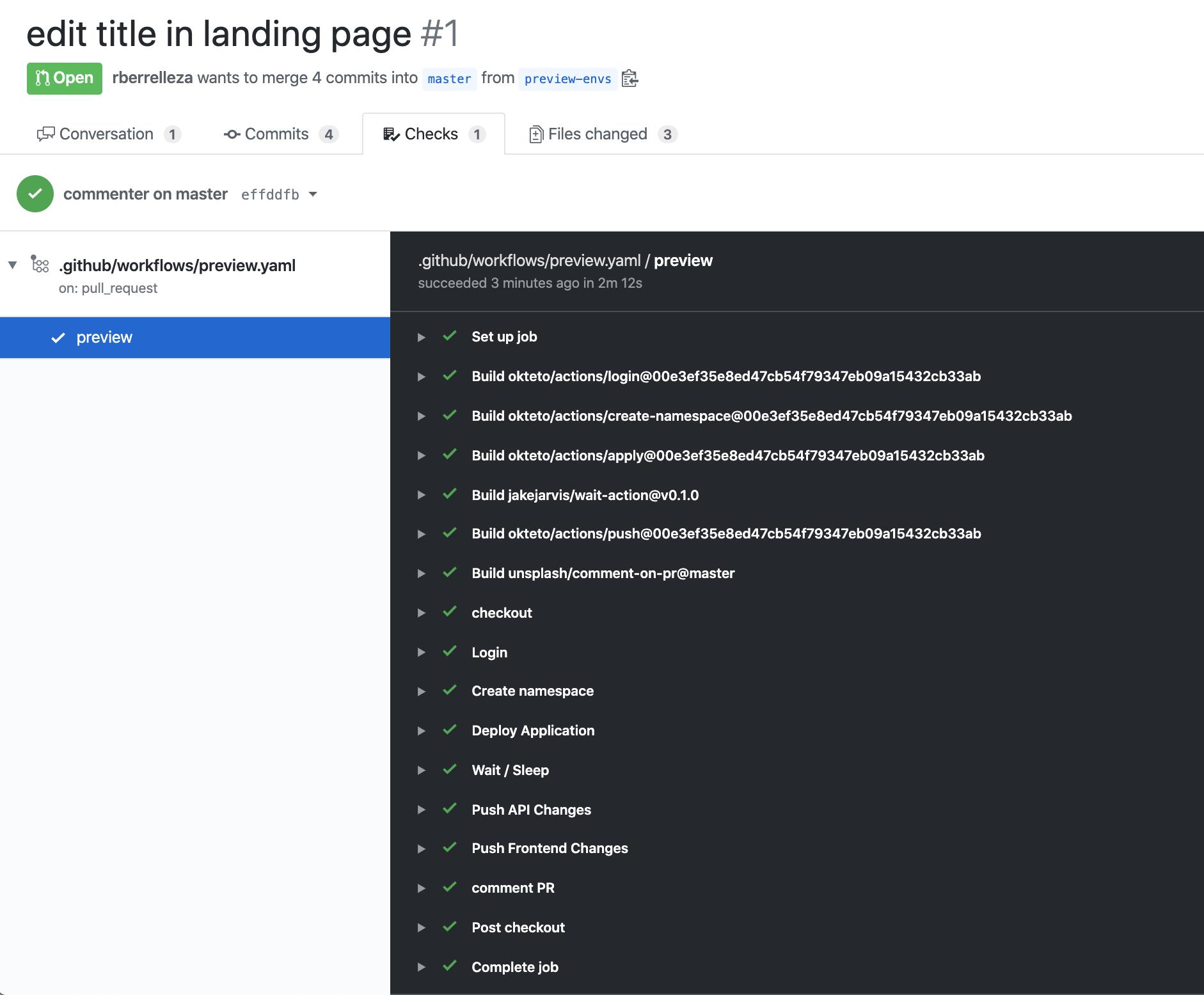
After opening the pull request, navigate to the Checks tab. You should see the preview workflow running:
Once the deployment completes, the deploy-preview action posts a comment on the pull request with the URL of your Preview Environment:
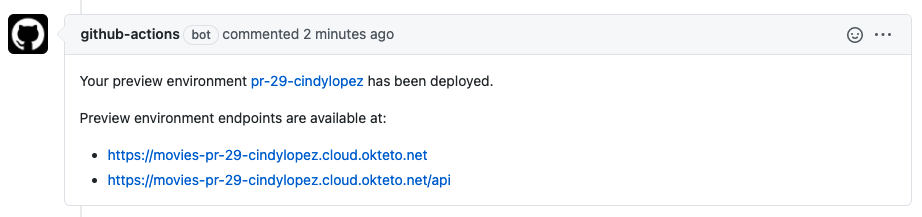
Click the URL to open the Movies application running in your Preview Environment. The end-to-end tests run automatically after the deployment, and the results appear in the GitHub workflow logs.
Every time you push a new commit to the branch, the workflow runs again and updates the Preview Environment with your latest changes.
Step 8: Merge and clean up
When you are satisfied with the changes:
- Merge the pull request in GitHub
- The cleanup workflow triggers automatically and destroys the Preview Environment
- Verify in the Okteto dashboard that the Preview Environment has been removed
Next steps
Congratulations! You deployed your first Preview Environment with automated testing 🚀
Every pull request in your repository now gets its own live environment, complete with end-to-end test results. Reviewers can interact with changes directly instead of reading diffs.
- The Preview Environments overview covers scope, sharing, and managing previews from the dashboard
- Explore Okteto Test for more testing patterns
- Configure the Garbage Collector to automatically clean up idle Preview Environments
- Set up Preview Environments with GitLab CI/CD if your team uses GitLab
- See the full list of supported GitHub Actions for additional workflow options